3.34 WiFi
3.34.1 Overview
ESP32 boasts a built-in Wi-Fi and Bluetooth nodule that is widely used in Internet of Things (IoT). With this function, it can remotely control the data transmission through the wireless network.
In applications, ESP32 can be used as a client to connect to a Wi-Fi network, or as a hotspot to create its own network. Through these connections, ESP32 receives commands to control external devices, such as turning on/off lights and adjusting temperature. In the code, protocols like HTTP and MQTT are used to communicate with the server to achieve data sending and receiving, so as to remotely control and monitoring.
3.34.2 Code Blocks

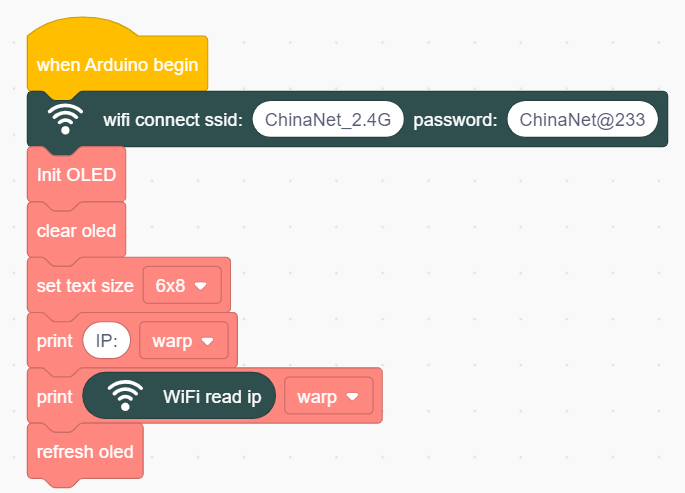
This block initialize wifi module. You need to set the name and passwords of your wifi.

This block reads the IP address after esp32 connecting to wifi, and print it on serial monitor.

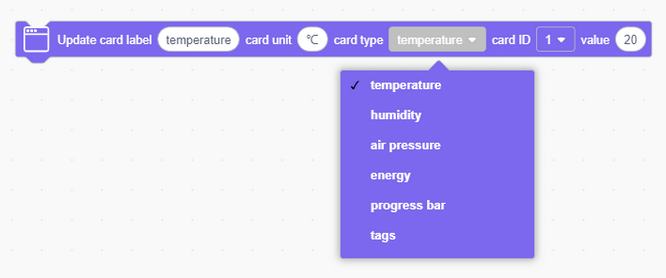
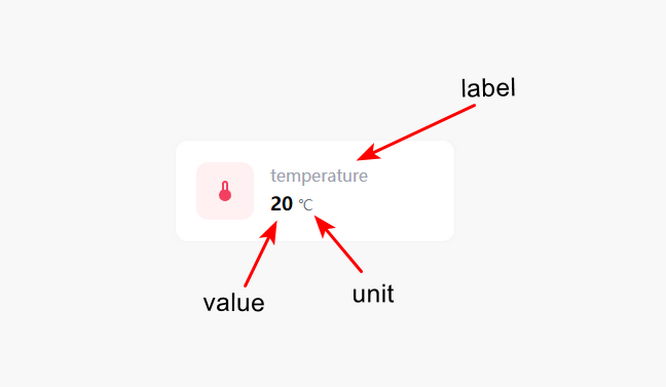
This block updates the sensor values in real time. Input the value name in the first box and its unit in the second one.
After that, choose a card ID, which should varies with modules. The value to be displayed is in the final box.

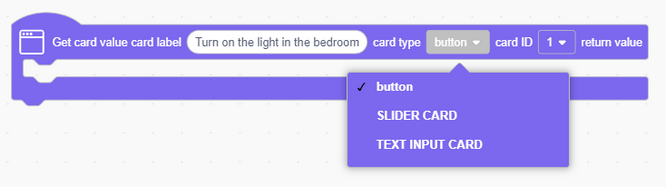
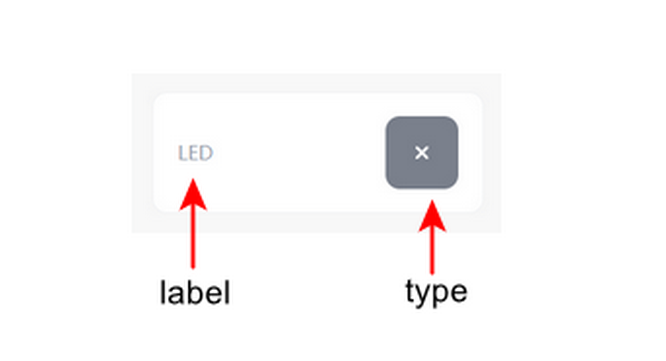
This block adds the web buttons. Set the button usage in the card label. For example, red LED. This is in order to separate buttons.
The card ID cannot be the same in the code.
3.34.3 ESP32 WiFi Introduction
ESP32 development board comes with built-in Wi-Fi (2.4G) and Bluetooth (4.2), which enable it to easily connect to Wi-Fi network and communicate with other devices in the network. You can display web pages in your browser via ESP32.
Base station mode (STA / Wi-Fi Client mode): ESP32 is connected to Wi-Fi hotspot (AP).
AP mode (Soft-AP / Wi-Fi hotspot mode): Wi-Fi device(s) is(are) connected to ESP32.
AP-STA mode: ESP32 is both Wi-Fi hotspot and a Wi-Fi device connected to another Wi-Fi.
These modes supports multiple security modes, including WPA, WPA2 and WEP.
It is able to scan Wi-Fi hotspot (active or passive)
It support promiscuous mode monitoring IEEE802.11 Wi-Fi packets.
For more wifi reference, please visit https://docs.espressif.com/projects/esp-idf/en/latest/esp32/api-reference/network/esp_wifi.html
espressif official: https://www.espressif.com.cn/en/home
3.34.4 Test Code
There are two ways to upload the code: directly open the code file we provide; or manually build blocks.
Directly open the code file we provide:
Click
 and choose
 Load from your computer
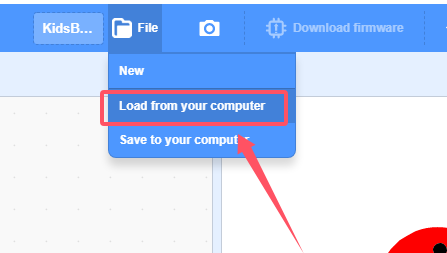
We have already downloaded the codes on computer desktop, so open the file and choose
3-34-wifi.sb3
Manually build blocks:
Add wifi web page library first:
Click
 to add an Extension
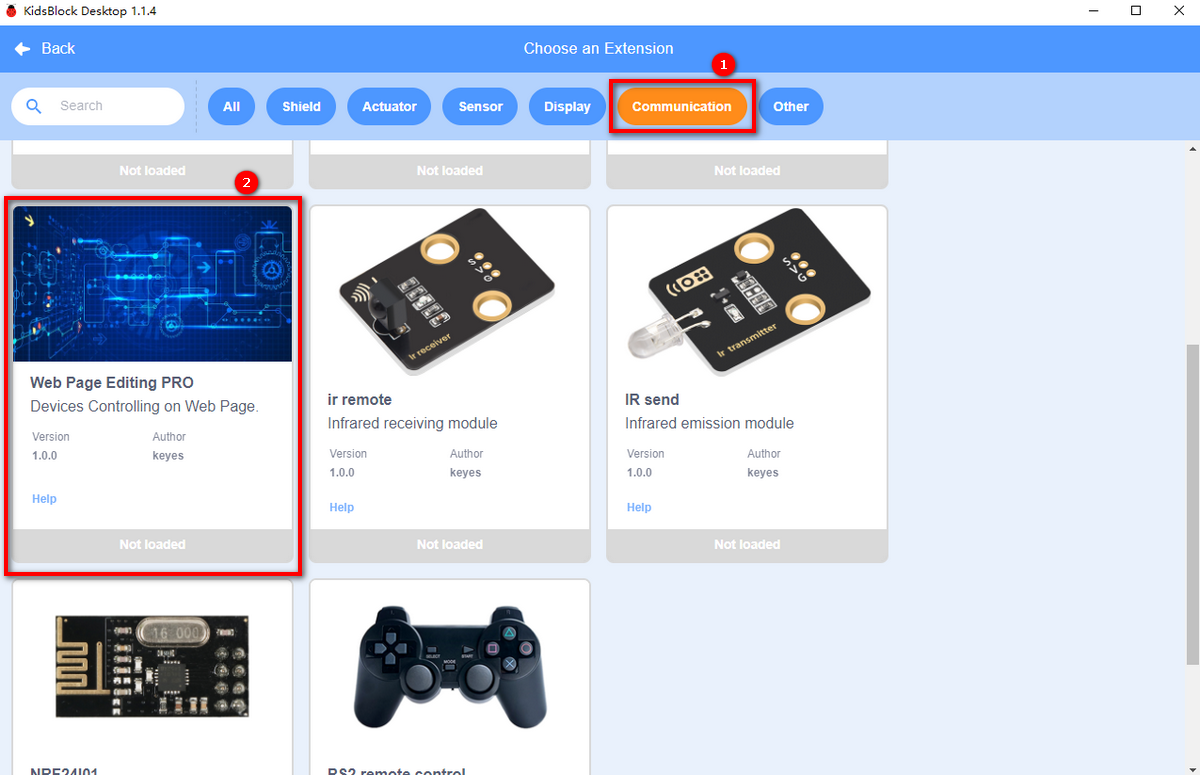
Click communication to load “Web Page Editing PRO”.
In
 , set the name and passwords of your wifi in block .
Display the IP address of the wifi on the OLED
Set up a web element named temperature in the unit of ℃.
Code block:
Web page:
Add a button, set the type to button
Code block:
Web page:
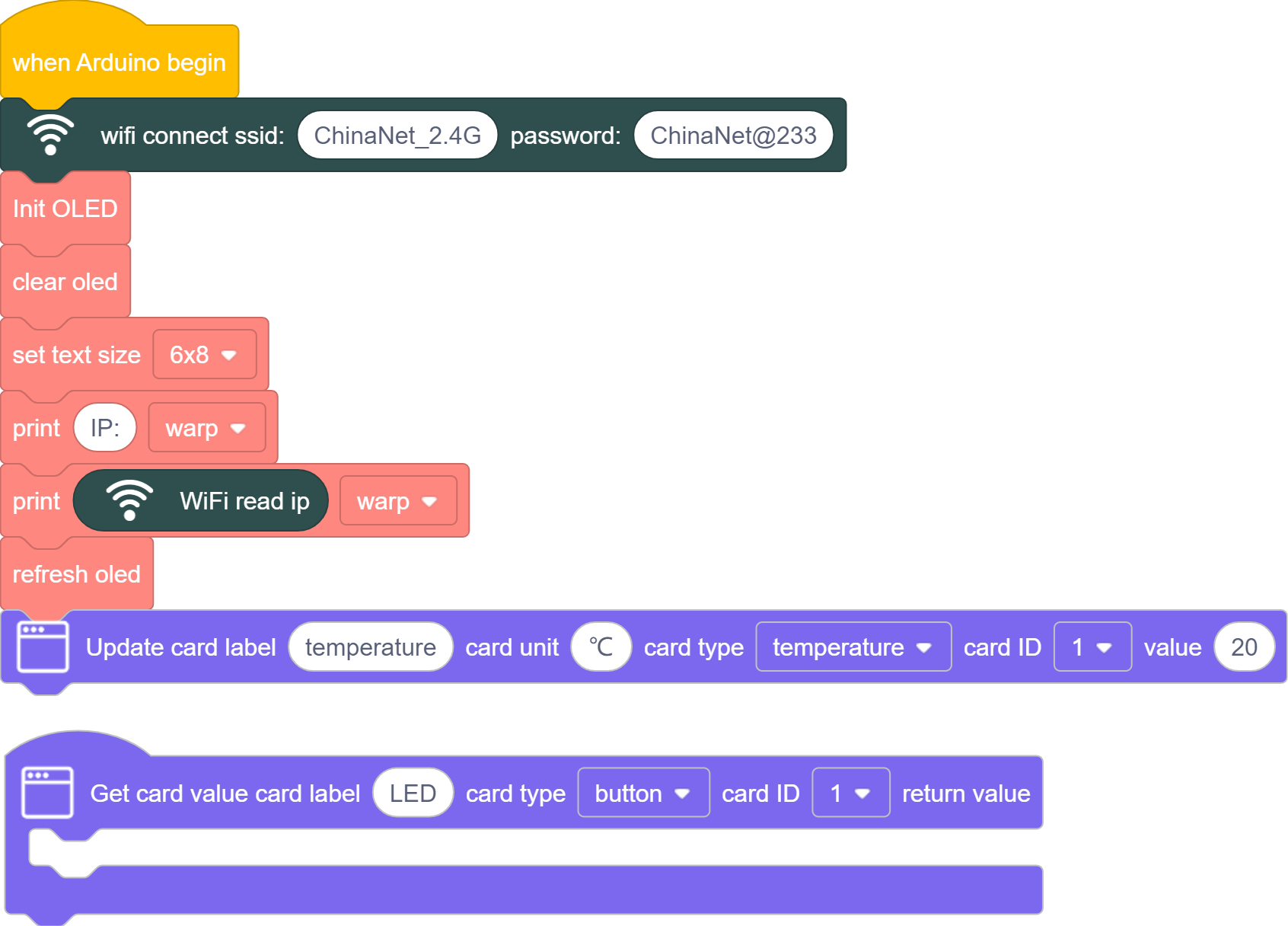
Complete Test Code
3.34.5 Test Result
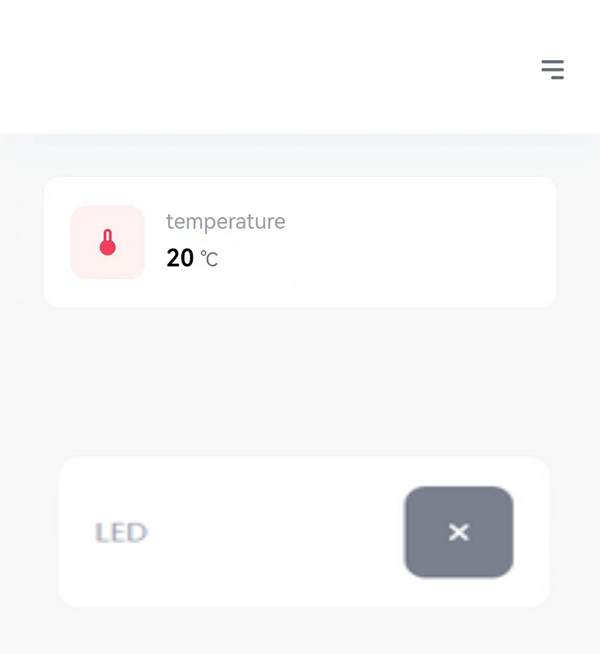
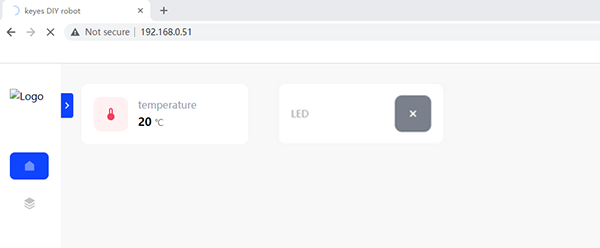
After uploading code, the OLED will display the IP address. Connect your computer/mobile phone and ESP32 to the same wifi, and you can access the IP address to see the control page through your device.
PC:
Mobile: