3.19 Button Control LED
3.19.1 Overview
In this project, we control the ON/OFF of the LED via an AD button. The LED will light up if we press the button and it goes off when we press the button again.
3.19.2 Test Code
3.19.2.1 Code Flow
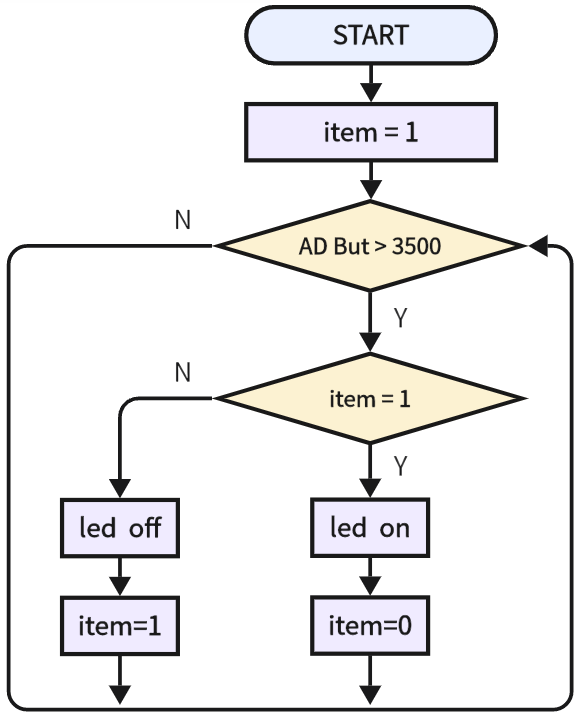
3.19.2.2 Build Code
There are two ways to upload the code: directly open the code file we provide; or manually build blocks.
Directly open the code file we provide:
Click
 and choose
 Load from your computer
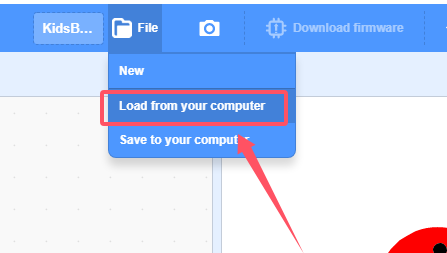
We have already downloaded the codes on computer desktop, so open the file and choose
3-19-tableLamp.sb3
Manually build blocks:
In
 , find
  block.
In
 , find and place
 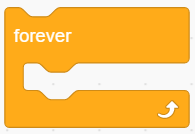 block under .
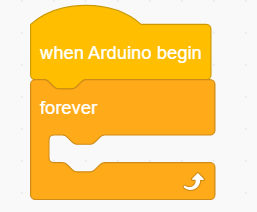
In
 , find
  and put it under , name the variable to “item“ and assign to “1” as its initial value.
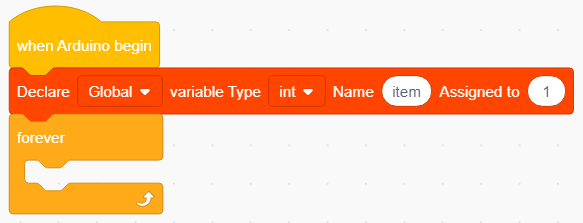
In
, put 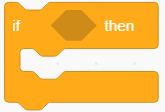 into .
In
 , find and put
  into the condition box of
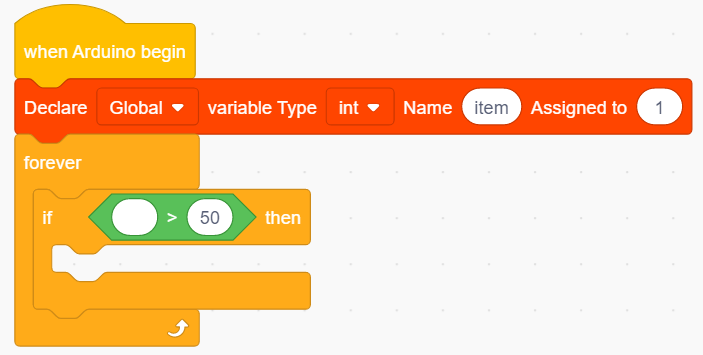
In
 , find
  and put it in the left part of , and set the right part to value 3500: AD key analog value > 3500

In
, find and put block 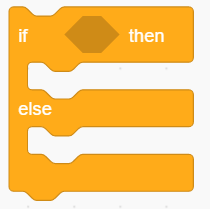 into .
In
, put  into the condition box of
 In
, put 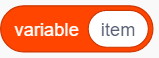 into the left part of the , and modify the right part into “1”: variable item = 1
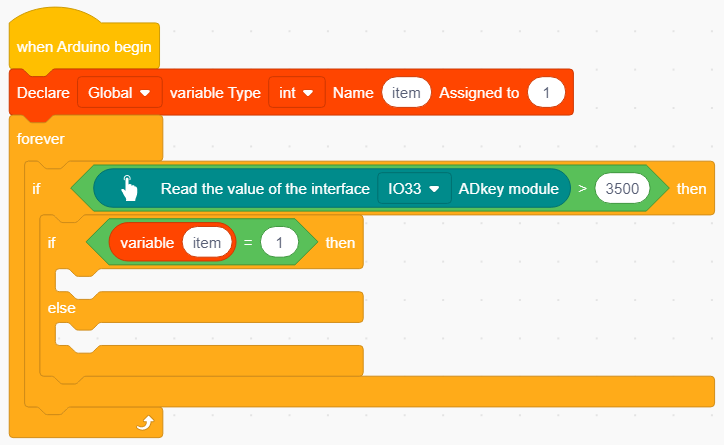
In
 , drag and put
  in “if” of block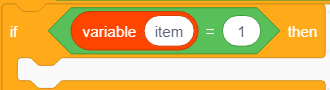
In
, put  under
under Duplicate
and put into “else” of block 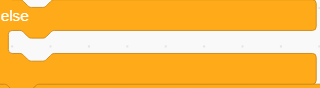 , and set LED to output “LOW” and set item variable by “1”.
Add a delay of 0.3s below
.
Complete Test Code
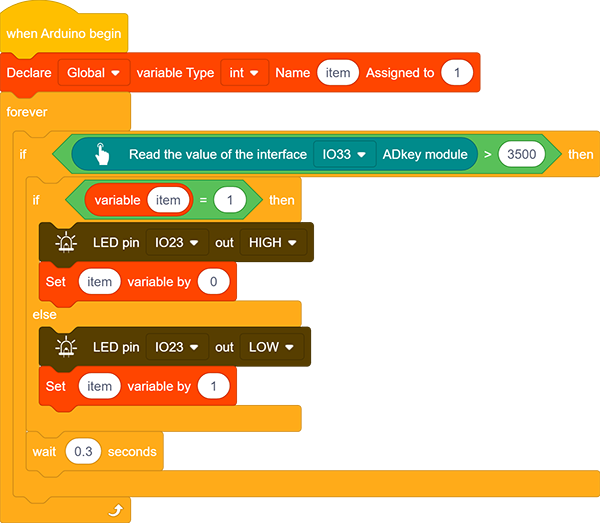
3.19.2.3 Test Result
After uploading code, press the red button and the red LED lights up; press it again and the LED goes off.