3.16 OLED Display
3.16.1 Overview
OLED display is also called organic light-emitting diode or organic dot laser display. This display is self-luminous. It adopts a very thin coating of organic materials and glass substrate which will light up if current passes through. Therefore, it does not require a back-light. Note that it will not light up when just powering on; programing and wiring are also needed.
Besides, it features large viewing Angle, low power consumption, high contrast, thin display, fast response, simple structure, and can work on flexion boards within a wide temperature range.
3.16.2 Schematic Diagram
Communication mode: I2C communication
Internal driver chip: SSH1106
Resolution: 128 x 64
3.16.3 Code Blocks
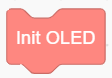
This block initializes OLED display, which is necessary when using OLED module.
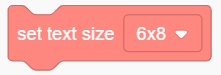
This block sets size and color of the displayed text. The default settings are usually used.
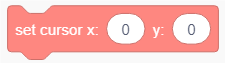
This block sets the position of text starting to be displayed on the OLED.

This block inputs the printing text on OLED, and only strings are available.

This block displays icons. Some commonly used icons are integrated in this block.

This block clears all text on OLED.

This block refreshes OLED display. This block should be added after your settings. Otherwise, they are invalid.
3.16.4 Test Code
3.16.4.1 Build Code
There are two ways to upload the code: directly open the code file we provide; or manually build blocks.
Directly open the code file we provide:
Click
 and choose
 Load from your computer
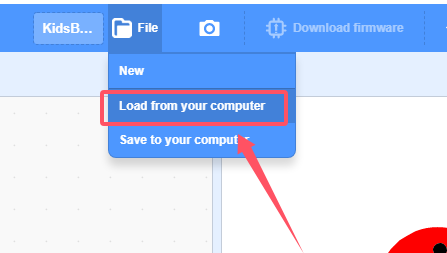
We have already downloaded the codes on computer desktop, so open the file and choose
3-16-oled.sb3
Manually build blocks:
In
 , find
  block.
In
 , find and put and under in sequence.
Add
under In
 , put
, put 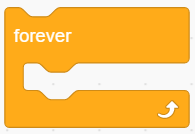 under
under Put
into Add a
under , and you can modify the text into whatever you like.Put
under
Complete Test Code
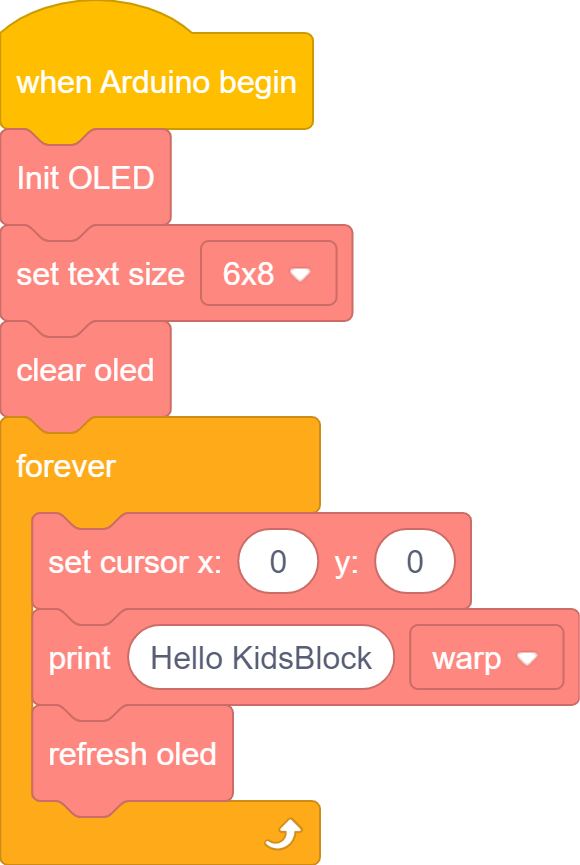
3.16.4.2 Test Result
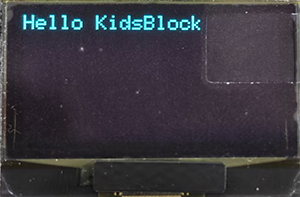
After uploading code, you will see the OLED shows the text you set. Here we maintain it as default, so it displays “Hello KidsBlock”, as shown below: