3.36 WiFi Control
3.36.1 Overview
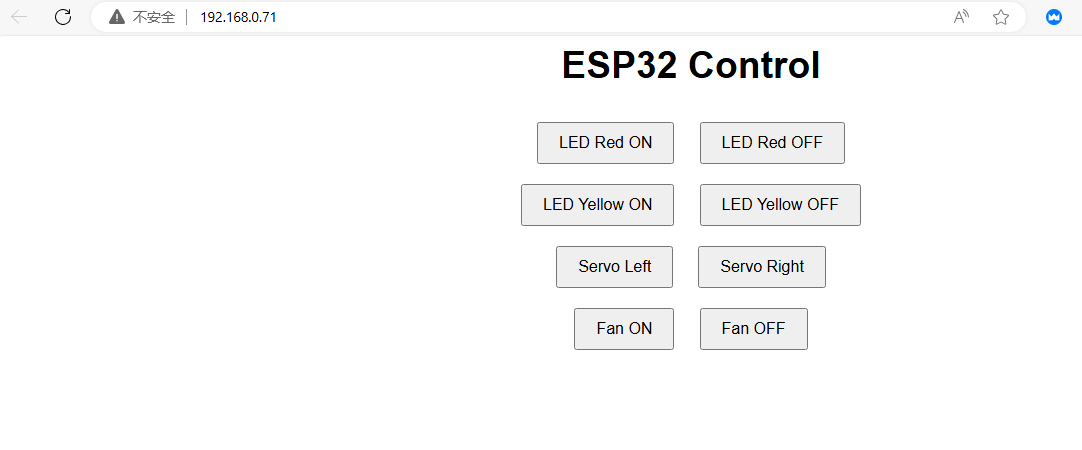
We control LED, servo and the fan on the web page button wirelessly.
3.36.2 Test Code
In Files, open 3-36-wifi-WebpageControl.py and click  .
.
Code:
'''
 * Filename    : 3-36-wifi-WebpageControl
 * Thonny      : Thonny 4.1.4
 * Auther      : http//www.keyestudio.com
'''
import network
import socket
import time
import machine
from machine import Pin, PWM
from servo import Servo

# WiFi connection information
SSID = 'test1'  # your WiFi name
PASSWORD = '88888888'  # your WiFi password

# initialize executer
ledRed = Pin(23, Pin.OUT)
ledYellow = Pin(26, Pin.OUT)
ledGreen = Pin(27, Pin.OUT)

servo = Servo(pin=25)

MA = Pin(18, Pin.OUT)
MB = Pin(17, Pin.OUT)

# connect to WiFi
def connect_wifi(ssid, password):
    wlan = network.WLAN(network.STA_IF)
    wlan.active(True)
    wlan.connect(ssid, password)

    timeout = 10
    while not wlan.isconnected() and timeout > 0:
        print("Connecting to WiFi...")
        time.sleep(1)
        timeout -= 1

    if not wlan.isconnected():
        raise Exception("Could not connect to WiFi")

    print('Network config:', wlan.ifconfig())
    print('Connected to WiFi, IP address:', wlan.ifconfig()[0])
    return wlan

# create HTML page
def web_page():
    html = """<html>
    <head>
        <title>ESP32 Control</title>
        <style>
            body { font-family: Arial, sans-serif; text-align: center; }
            button { padding: 10px 20px; font-size: 16px; margin: 10px; }
        </style>
        <script>
            function sendRequest(action) {
                var xhr = new XMLHttpRequest();
                xhr.open("GET", "/" + action, true);
                xhr.send();
            }
        </script>
    </head>
    <body>
        <h1>ESP32 Control</h1>
        <button onclick="sendRequest('ledRed_on')">LED Red ON</button>
        <button onclick="sendRequest('ledRed_off')">LED Red OFF</button><br>
        <button onclick="sendRequest('ledYellow_on')">LED Yellow ON</button>
        <button onclick="sendRequest('ledYellow_off')">LED Yellow OFF</button><br>
        <button onclick="sendRequest('ledGreen_on')">LED Green ON</button>
        <button onclick="sendRequest('ledGreen_off')">LED Green OFF</button><br>
        <button onclick="sendRequest('servo_left')">Servo 0</button>
        <button onclick="sendRequest('servo_right')">Servo 180</button><br>
        <button onclick="sendRequest('fan_on')">Fan ON</button>
        <button onclick="sendRequest('fan_off')">Fan OFF</button>
    </body>
    </html>"""
    return html

# Control actuator
def handle_request(request):
    if 'ledRed_on' in request:
        ledRed.value(1)
    elif 'ledRed_off' in request:
        ledRed.value(0)
    elif 'ledYellow_on' in request:
        ledYellow.value(1)
    elif 'ledYellow_off' in request:
        ledYellow.value(0)
    elif 'ledGreen_on' in request:
        ledGreen.value(1)
    elif 'ledGreen_off' in request:
        ledGreen.value(0)
    elif 'servo_left' in request:
        servo.set_angle(0)  # rotate to left
    elif 'servo_right' in request:
        servo.set_angle(180)  # rotate to right
    elif 'fan_on' in request:
        MA.value(1)
        MB.value(0)
    elif 'fan_off' in request:
        MA.value(0)
        MB.value(0)

# Start the Web server
def start_server():
    wlan = connect_wifi(SSID, PASSWORD)
    addr = socket.getaddrinfo('0.0.0.0', 80)[0][-1]
    s = socket.socket()
    s.bind(addr)
    s.listen(5)
    print('Listening on', addr)

    while True:
        cl, addr = s.accept()
        print('Client connected from', addr)
        request = cl.recv(1024)
        request = str(request)
        print('Content = %s' % request)

        handle_request(request)

        response = web_page()
        cl.send('HTTP/1.1 200 OK\n')
        cl.send('Content-Type: text/html\n')
        cl.send('Connection: close\n\n')
        cl.sendall(response)
        cl.close()

# run server
try:
    start_server()
except Exception as e:
    print('Failed to start server:', e)
    machine.reset()
Result:
Upload the code, and the Shell shows the IP address after connecting to wifi.
Connect your computer/mobile phone and ESP32 to the same wifi, and you can access the IP address to see the control page through your device.