3.37 Smart Control Panel
3.37.1 Overview
Combined web buttons and wireless control, this control panel in this project is able to control modules and read module values as well.
3.37.3 Test Code
You can manually build blocks, or directly open the code file we provide: 3-37-intelligent console.ubp. If you have any questions about how to open code files or upload code, please back to 1.9 Upload Code.
Build code blocks:
In
 , drag
  to the script area.
Drag
 and set the WIFI name to “LiuTest” and password to “88888888”.
Drag
 and set the Web name to “CodingBox.local”.
Add
 to refresh the data of each sensor on the Web page.
Add
 and set the title to “Coding Box Web Panel”.
Use
 to display temperature value on the Web page. Modify the blank behind the “with selector” into “cbox_temperature”.
Similarly, add humidity, photoresistor, PIR motion and RFID value in sequence.
Use
 to add a component that controls the display color of WS2812, and modify the blank behind “with selector” to
 cbox_setAllNeoPixels.Use
 to add a slider that controls the servo. Remain the name as default and set the range to 0-180, and modify the blank behind “with selector” to
 cbox_setServo.Use
 to add a button that controls the fan on. Set name as “Fan ON”, and modify the blank behind “with selector” to
 cbox_setFan. Click to add a “params” blank, and put
  in it and set to “100”.
Use
to add a button that controls the fan off. Set name as “Fan OFF”, and modify the blank behind “with selector” to cbox_stopFan.Use
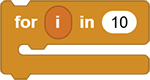 , a loop block, to replace code block that repeatedly executes, such as LED control.
Put a
into the blank of and click to add “red”, “yellow” and “green”.
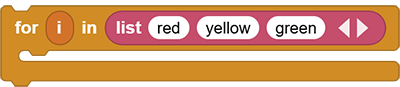
Put
 in . Use
  to bind the “i” value to “LED”, which is the name of button. And modify the blank behind “with selector” to
 cbox_setLED. Click to add a “params” blank, and put in it and set to variable “i”.
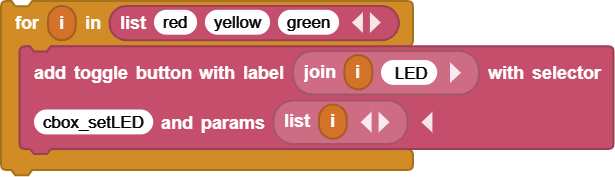
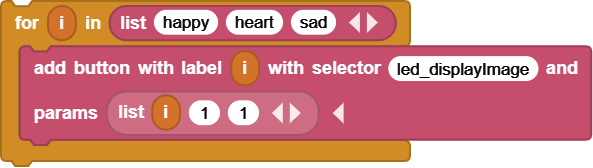
Similarly, we set the buttons for OLED display icons. They are “happy”, “heart” and “sad” respectively, of which variable “i” is also available.
In
 , find
  and “copy callable name”, and paste to the blank behind the “with selector”:
 led_displayImage. Click to add a “params” blank, put in it, and click of it twice so we get 3 blanks of list. Input variable “i” in the first one and “1” in the remaining two(The starting position of the icon display).
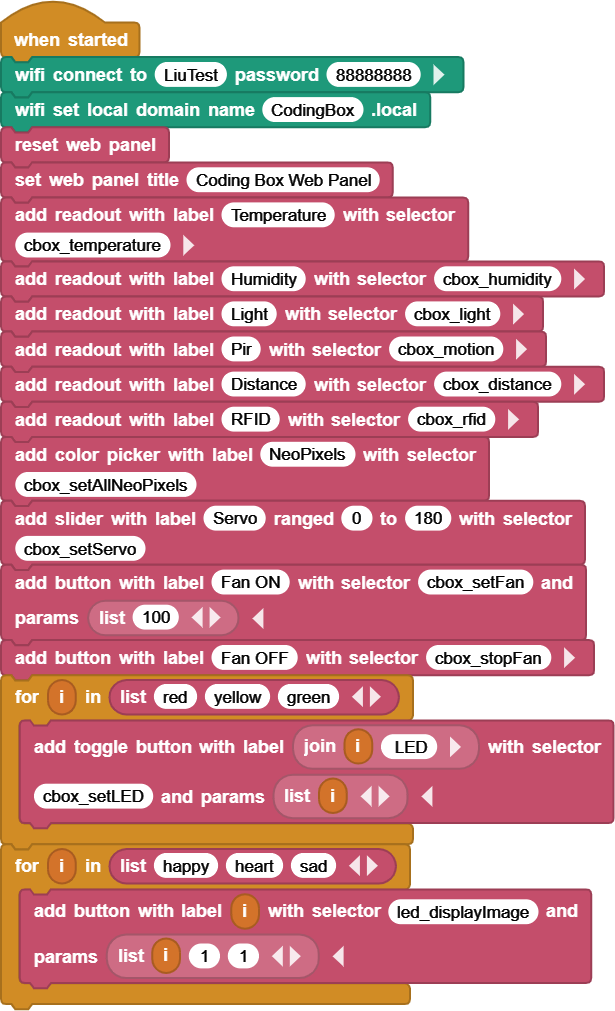
Complete code:
3.37.3 Test Result
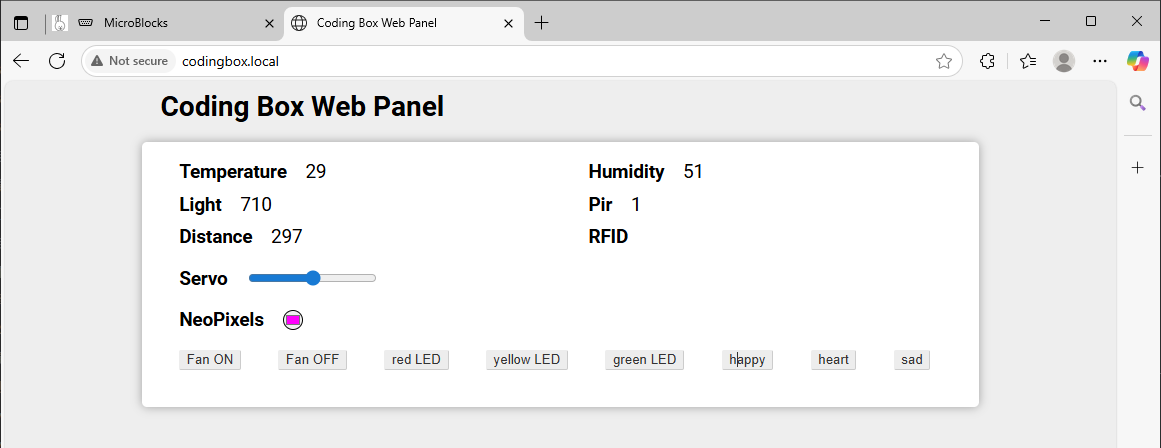
Connect the coding box to the MicroBlocks via USB or Bluetooth. Click  to upload code. After connecting to wifi, you can see an IP address:
  . Now connect your control device (mobile phone, tablet, computer) to the same wifi and search
 codingbox.local on the browser to enter the Web page.